Focus Points for Lightroom Classic
V4 – What’s New?
Version 4 is the largest update since the project was revived. It fundamentally changes how Focus Point Viewer integrates with Lightroom. You can now keep the viewer open while continuing to work in Lightroom, choose between multiple rendering methods depending on your workflow, and benefit from significantly faster image display.
These changes make the plugin considerably faster and much more convenient to use while working in Lightroom.
Content
-
Second Screen Mode
-
Display Modes
-
Direct View on Windows
-
Preview Image and Export Image on macOS
-
Known Limitations
-
AutoHotkey Companion Script for Windows
About the limitation references
Some features described in this document rely on Lightroom SDK functionality that behaves differently on Windows and macOS or is currently affected by SDK limitations.
These limitations are indicated by superscript references throughout this document. A complete explanation—including the cause, the impact, possible workarounds, and links to Adobe bug reports—is provided in the Known Limitations section.
1. Second Screen Mode
Second Screen mode lets you continue working in Lightroom while the Focus Points window remains open. Selecting another photo automatically updates the displayed focus points without reopening the plugin.
Previous versions opened the plugin as a modal dialog attached to Lightroom. While the plugin was open, Lightroom could not be used. Second Screen mode removes this limitation by opening Focus Points in its own independent window that follows the current Lightroom selection.
The independent window supports two different workflows (behaviors):
- Follow Lightroom keeps Lightroom as the primary application while Focus Point Viewer automatically follows the current selection.
- Interactive makes Focus Point Viewer the primary application so that keyboard shortcuts immediately operate on the displayed image.
1.1 Follow Lightroom
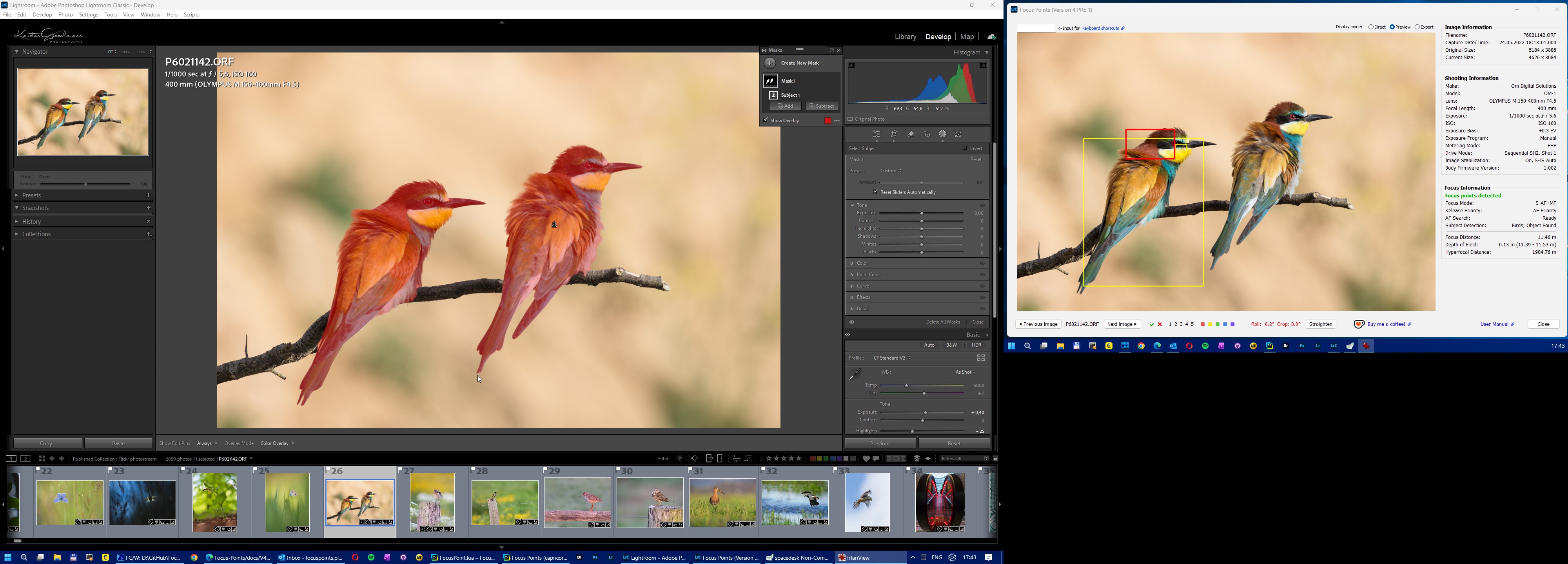
This feature is particularly useful in a multi-screen setup.
For example, Lightroom could be used on one screen while Focus Points is displayed on another 1. The displayed focus points would automatically update as you change the Lightroom selection.
In this mode, Lightroom remains the active window unless you activate Focus Points Viewer by clicking it 2.
Tip: This mode is ideal for reviewing large numbers of photos while continuing to work in Lightroom.
1.2 Interactive
Second Screen mode can also be useful for a single-monitor setup.
When checking the focus points for multiple photos, you are not restricted to using the Previous and Next keys to select the photos. Instead, you can scroll through your Lightroom filmstrip or grid and select the photos you want. You can also alter the plugin settings without having to close and restart the plugin explicitly.
In this mode, Focus Points Viewer remains the active window unless you click anywhere else 2, 3, 4.
Tip: This mode is best suited for keyboard-driven workflows where Focus Point Viewer remains the active window.
1.3 Configuration
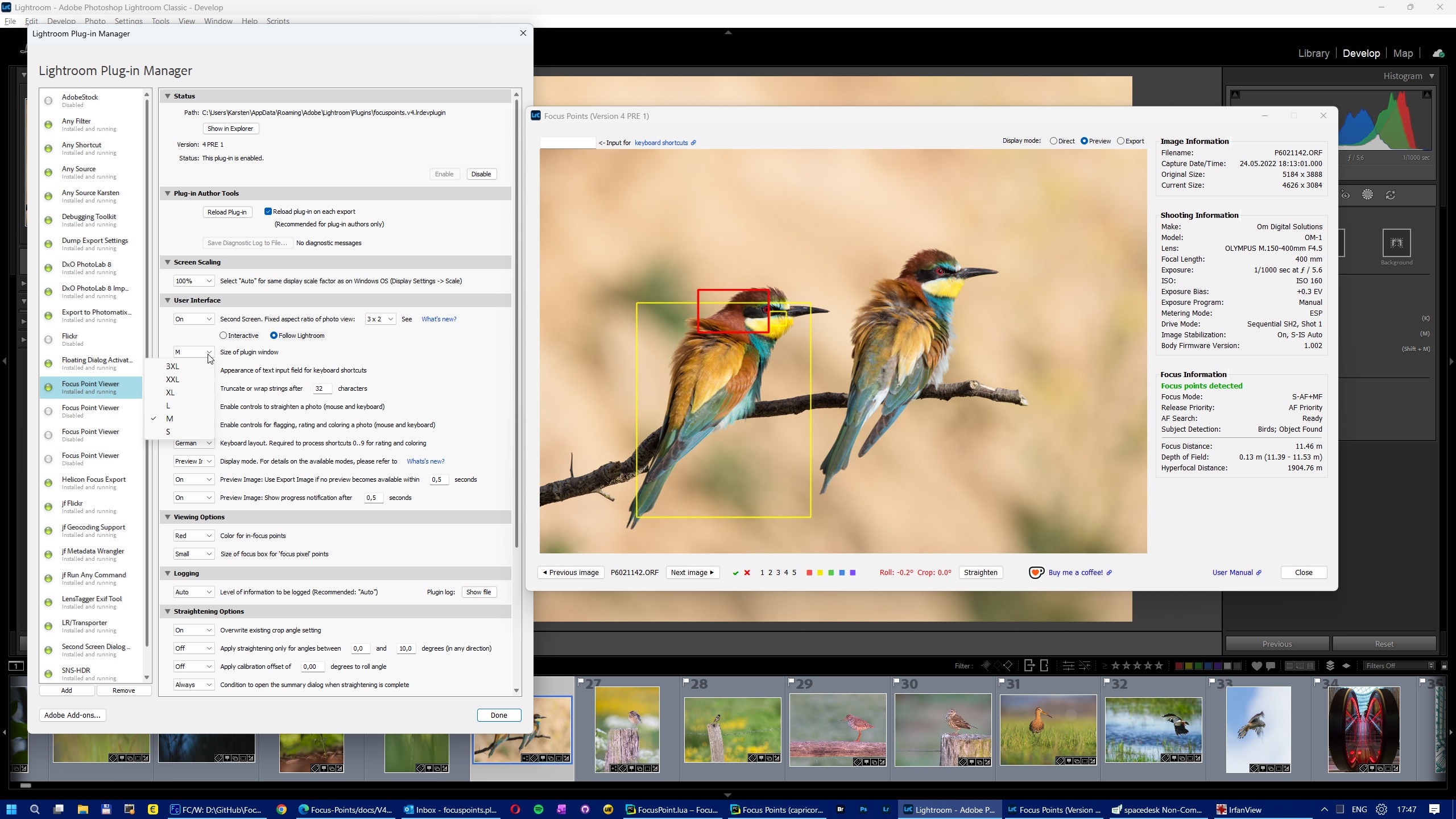
You can enable Second Screen mode from the Plugin Manager. You can also customize the behavior (Interactive or Follow) and the fixed aspect ratio reserved for photo display:

In Second Screen mode, the window keeps a fixed layout so it does not resize when switching between landscape and portrait photos on a secondary screen. Images are centered within the reserved display area while the information panel stays aligned on the right.
Note: The Second Screen window remembers its last position and size. When changing the display size (S / M / L / XL / XXL), the dialog content may temporarily occupy less space than the current window size. This can result in additional empty margins on the right or bottom of the window. These can be removed by simply resizing the window manually once. The adjusted size will again be remembered automatically.
Tip: When the Second Screen option is disabled (the default setting), the plugin continues to operate in Single Screen mode as before.
2. Display Modes
How images are displayed
Display mode determines how Focus Point Viewer obtains and displays the image. Each mode offers different advantages in terms of speed, image quality, live updates, and overlay appearance. The following display modes are supported in V4:
Direct View. Displays the photo directly through Lightroom’s internal Develop rendering engine, overlaying it with icons that visualize the corners of the marking rectangles. Direct View automatically reflects Lightroom edits in real time. It acts as a mirror to what Lightroom displays in the Develop module.
Preview Image. Retrieves a preview image from Lightroom’s preview cache, writes it to a temporary JPEG file, and enhances the image with markings. This mode depends on Lightroom’s preview cache and may therefore be affected by the availability of previews or the timing of their refresh.
Export Image. Uses Lightroom’s Export feature to save an image as a JPEG file to the hard drive. It’s not the fastest, but it’s rock-solid and reliable.
The following table summarizes the characteristics of the available display modes:
| Mode | Platform | Advantages | Limitations |
|---|---|---|---|
| Direct View* | macOS, Windows5 | Fastest startup, live updates while editing | In Library, the image may appear after a short rendering delay while Lightroom renders it |
| Preview Image** | Windows, macOS6 | Usually fast when a Lightroom preview already exists | Performance depends on Lightroom’s preview cache |
| Export Image** | Windows, macOS6 | Always produces a reliable image | Typically slower when a Lightroom preview already exists, but often faster when Lightroom first needs to build a preview. |
* Uses corner markers for focus points.
** Uses full rectangle overlays.
Tip: Each display mode has its own strengths. Direct View provides the fastest, most responsive display while editing. Preview Image and Export Image provide full rectangle overlays. The long-term goal is to make all three modes available on both macOS and Windows, allowing you to switch between them at any time and use the mode that best suits your current task.
Tip: There is no single “best” display mode. Depending on your workflow, you may prefer maximum speed, live updates while editing, or the clearer appearance of full rectangle overlays.
2.1 Changing the active display mode on the fly
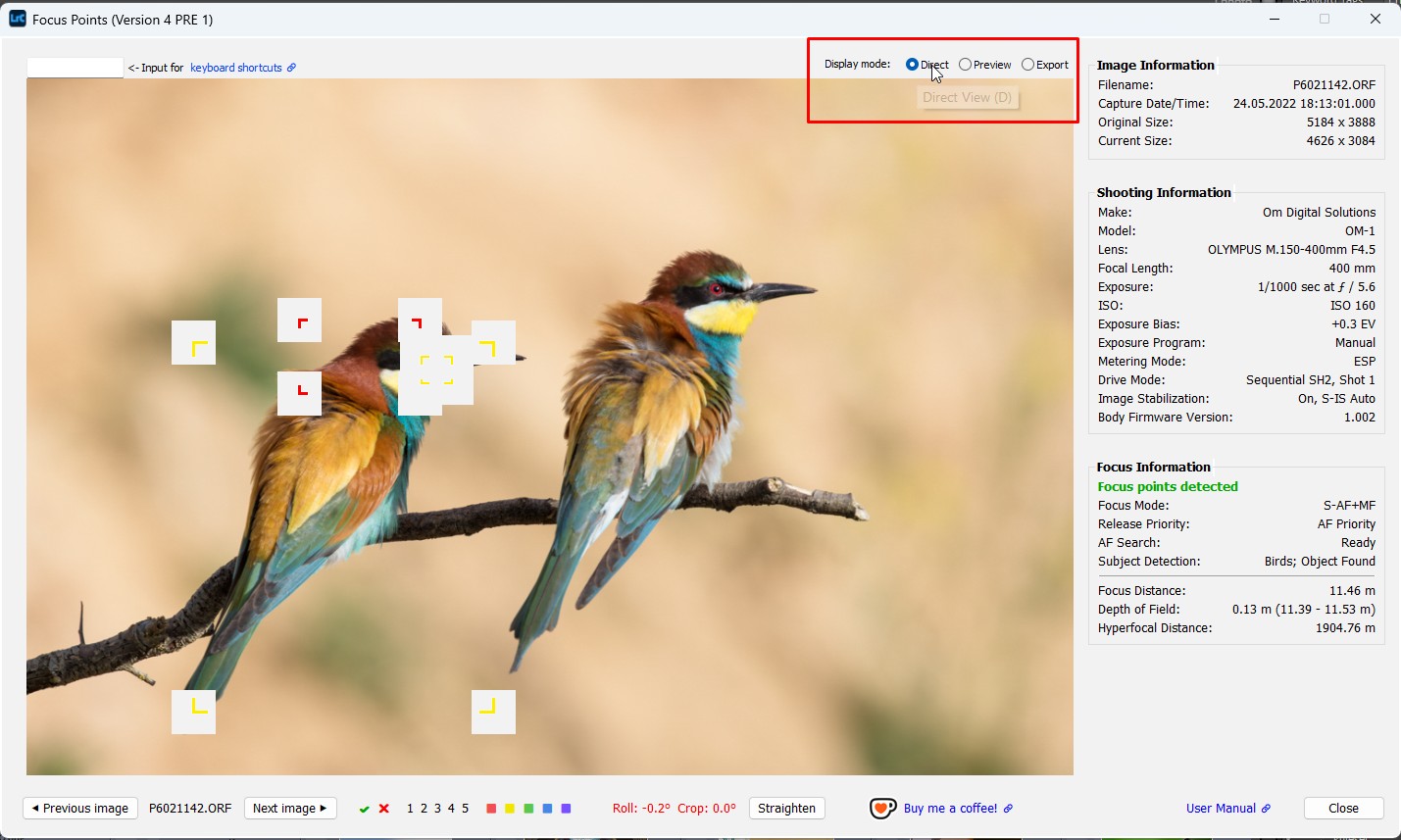
Although Direct View offers the fastest startup times, the use of corner markers to indicate focus points, detected faces and subjects can be confusing, particularly if there are multiple marked areas in the photo. Preview Image and Export Image use full rectangle overlays which can improve visual clarity.
To enable you to easily get the best of both worlds you can select the display mode right from the user interface. Either by clicking with the mouse, or by using a keyboard shortcut. Press one of the following keys:
- D - Direct View
- V - Preview Image
- E - Export Image
After selecting a different display mode, the window will automatically refresh (close and reopen).
Tip: Switching display modes lets you quickly choose the rendering method that best matches your current task without leaving Focus Point Viewer.
2.2 How display modes affect the Focus Point Viewer performance
Startup time depends on the selected display mode, camera model, and whether Lightroom already has a preview available. The following measurements illustrate the typical behavior.
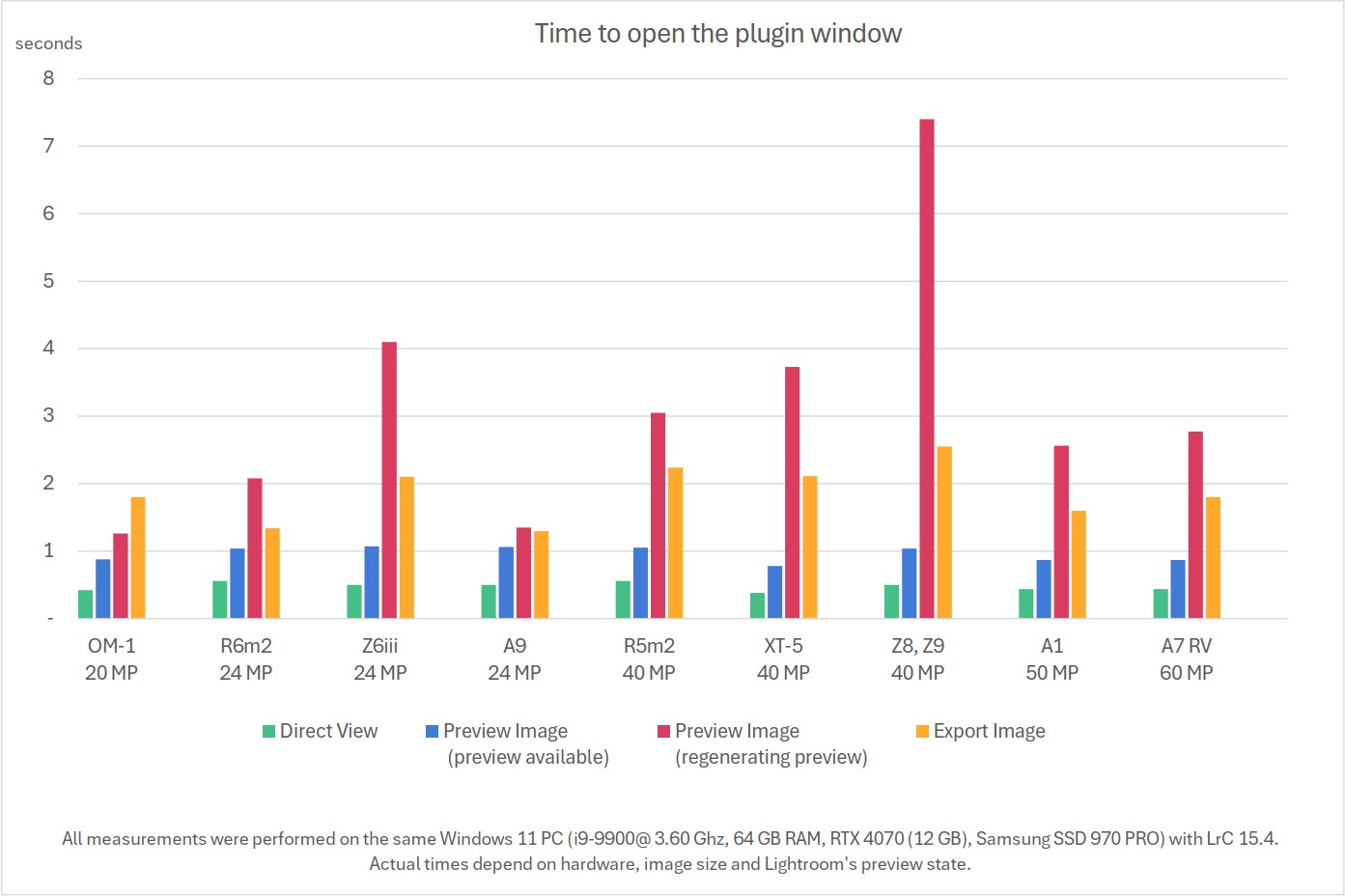
Actual startup times depend on camera model, image size, Lightroom preview availability, and the selected display mode, but the relative differences between the modes remain similar.
2.3 Choosing a display mode
| Your priority | Recommended display mode |
|---|---|
| Fastest startup and live updates while editing | Direct View |
| Full rectangle overlays with good performance | Preview Image |
| Maximum reliability, regardless of preview availability | Export Image |
3. Direct View on Windows
V4 introduces Direct View to Windows users 5. Direct View has been available on macOS since earlier versions. Unlike the Preview Image and Export Image modes, Direct View displays Lightroom’s own rendered image directly, without creating a temporary JPEG on disk. This has two major advantages:
- significantly faster window opening
- immediate updates while editing the photo
Tip: Direct View is the recommended choice while editing photos because it provides the fastest startup and updates immediately as Lightroom adjustments are made.
4. Preview Image and Export Image on macOS
This is not included in PRE 1, but is planned for inclusion in a future pre-release version.
Tip: These display modes are recommended when you prefer full rectangle overlays or require the most reliable rendering regardless of Lightroom’s preview state.**
5. Known Limitations
The following limitations (except 6) are caused by current Lightroom Classic SDK behavior and affect Focus Point Viewer. They are outside the plugin’s control and will be removed from this list as Adobe addresses the underlying SDK issues.
Some of these limitations can seriously affect the operation of the second screen, particularly on Windows. To address this issue, the plugin is supplemented by a companion AutoHotkey script that works around the existing Lightroom SDK window activation issues. See AutoHotkey companion script.
A similar fix for limitation 2 on macOS has not yet been considered, because
- it’s technically more demanding
- it only fixes one of the two issues with Follow mode, as long as 1) is not resolved.
1) Focus Point Viewer does not remember its position on a secondary monitor on macOS
Effect: On macOS, the Focus Point Viewer remembers the correct position on the screen when reopening, but not the correct screen. When you drag the plugin window to a secondary screen and select another image it will reopen on the primary screen.
Reason: Inconsistent behavior of the underlying SDK function to open a floating dialog on Windows vs macOS.
Current status: Adobe has acknowledged the issue and a bug report has been filed.
https://community.adobe.com/bug-reports-674/p-mac-sdk-floating-dialog-does-not-reopen-on-second-screen-1628255
Workaround: Use the Focus Point Viewer alongside Lightroom on the primary screen.
How you can help: If this issue affects your workflow, please vote for the Adobe bug report. Community votes help increase its visibility.
2) Focus Point Viewer always becomes the active window when opened
Effect: This prevents a smooth ‘Follow Lightroom’ behavior. Whenever Focus Point Viewer opens or refreshes after selecting another photo, it becomes the active window and receives keyboard input. This interrupts keyboard-driven Lightroom workflows until Lightroom is clicked again.
Reason: Lightroom SDK does not allow to specify whether a floating dialog should be activated or not when opened.
Current status: Adobe has acknowledged the issue and a bug report has been filed.
https://community.adobe.com/bug-reports-674/p-keyboard-input-routing-of-floating-dialogs-depends-on-prior-sdk-calls-1631366
Workaround: Use AutoHotkey companion script on Windows.
How you can help: If this issue affects your workflow, please vote for the Adobe bug report. Community votes help increase its visibility.
3) Keyboard shortcuts do not work immediately after opening Focus Point Viewer in Interactive mode on Windows.
Effect: In Second Screen Interactive mode, the Focus Point Viewer is the active window but keyboard input is not received until the user presses Tab, Left Arrow, Down Arrow or clicks a UI control.
Reason: Inconsistent behavior of the underlying SDK function on Windows vs macOS.
Current status: Adobe has acknowledged the issue and a bug report has been filed.
https://community.adobe.com/bug-reports-674/p-floating-dialogs-are-opened-without-initial-keyboard-focus-1631363
Workaround: Use AutoHotkey companion script on Windows.
How you can help: If this issue affects your workflow, please vote for the Adobe bug report. Community votes help increase its visibility.
4) Focus Point Viewer windows is always on top in Second Screen mode on Windows
Effect: In Second Screen mode on Windows, the Focus Point Viewer is always displayed at the top of all visible windows on the screen. It is not possible to bring other windows to the top. This limits usability, particularly when the Focus Point Viewer overlaps with applications that the user wants to run simultaneously.
Reason: Recent changes by Adobe with respect to handling of floating dialogs. Earlier, floating dialogs were always in back, never in front. Now it’s the opposite:
https://community.adobe.com/bug-reports-674/p-sdk-floating-dialogs-always-in-back-never-in-front-in-screen-mode-full-screen-on-windows-664457
Current status: New bug report to be filed with Adobe (by user aboswrt)
Workaround: None.
How you can help: If this issue affects your workflow, please vote for the Adobe bug report. Community votes help increase its visibility.
5) Direct View corner icons do not seamlessly blend with the photo when used on Windows
Effect: Direct View on Windows produces corner markings for focus points, faces and subject areas with rectangular artifacts around the overlay image. See the screenshot in section 2.1.
Reason: Inconsistent behavior of the underlying SDK function when using transparent PNG overlays in overlapping layouts on Windows vs macOS.
Current status: Adobe has acknowledged the issue and a bug report has been filed.
https://community.adobe.com/bug-reports-674/p-windows-sdk-transparent-png-overlays-do-not-composite-correctly-in-overlapping-layouts-1628087
Workaround: Use Preview Image or Export Image instead.
How you can help: If this issue affects your workflow, please vote for the Adobe bug report. Community votes help increase its visibility.
6) Preview Image and Export Image are not yet available on macOS
Effect: macOS users are limited to using Direct View. While this display mode has many advantages, its use of corner markers may lack visual clarity to indicate focus points, detected faces and subjects, particularly if there are multiple marked areas in the photo. Preview Image and Export Image use full rectangle overlays which can improve visual clarity.
Current status: Prepare work on integration of ImageMagick for macOS.
As Adobe addresses these SDK issues, the corresponding limitations will no longer apply in future versions of Focus Point Viewer.
6. AutoHotkey Companion Script for Windows
Windows users: Focus Point Viewer now includes an optional AutoHotkey companion script that automatically works around two current Lightroom SDK limitations affecting Second Screen mode.
Limitations 2) and 3) prevent a smooth user experience in Follow and Interactive modes. As this would significantly reduce the plugin’s effectiveness when used in these modes, considerable effort has been invested in finding workarounds.
These workarounds have been implemented in an AutoHotkey script called FixSecondScreen, which is included in the plugin installation package. The script is provided in both source code and compiled executable formats.
Installation
The FixSecondScreen.exe file can be found in the ahk folder of the focuspoints.lrplugin folder.
To activate the fix, run the executable and drag it to your Windows Startup folder, so that it is automatically available each time you start Windows. A green icon in the system tray indicates that the script is active.
How it works
To overcome the limitations imposed by the current implementation of the Lightroom SDK, the script mimics the actions a user would take to resolve the issue. The script consists of two independent watchers: one for Follow mode and one for Interactive mode.
2) Focus Point Viewer always becomes the active window when opened
While Follow mode is open, the watcher keeps Lightroom as the active application so that keyboard navigation continues to work. The watcher virtually clicks into Lightroom as soon as a window with the title ‘Focus Points Follow …’ becomes the active window.
Consequently, minimizing Lightroom while the Follow window is visible immediately restores Lightroom. Minimize or close the Follow window first if you want to minimize Lightroom.
Also, it is not possible to operate the plugin using keyboard shortcuts with the fix enabled.
3) Keyboard shortcuts do not work immediately after opening Focus Point Viewer in Interactive mode on Windows.
While Interactive mode is open, the watcher ensures that the Focus Points dialog receives keyboard input. As soon as a window with the title ‘Focus Points Interactive …’ is detected, the watcher activates this window and virtually presses the Down Arrow key, causing the keyboard shortcut entry field to receive keyboard input.
Note: The content of FixSecondScreen could also have been included in the FocusPointsHotkey script, but it has been deliberately separated to allow users to run either script independently or both together.