Focus Points for Lightroom Classic
Quick Setup Guide
Getting started with V3.x
Getting started with V4
V3.x Quick Setup Guide
Focus Point Viewer works well with its default settings. This guide only covers the few options you may want to adjust before using the plugin.
Some steps are specific to the operating system (OS) you are running.
To keep things simple, there are separate sections for Windows and macOS.
Setup on Windows
- Download and install the plugin ↗
- Optional: Load the AutoHotkey script to use a keyboard shortcut to run the plugin ↗
-
Configure plugin settings:
SelectFocus Point Viewerfrom the list of installed plugins (Library → File → Plug-in Manager) and check theUser Interfacesection: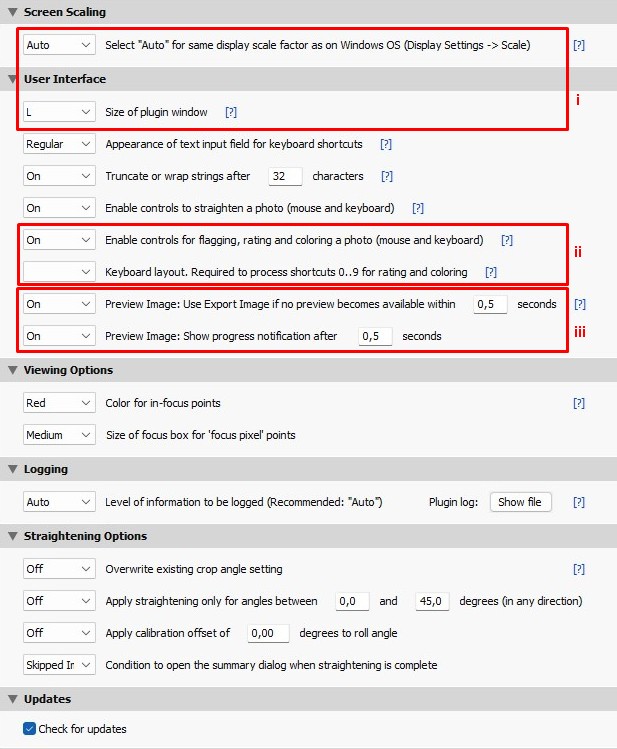
The highlighted settings are the only ones that normally require attention. All other settings can safely remain at their defaults.- Set your preferred plugin window size.
- If you are using the Windows Display Settings to scale your display, you can use the
Screen Scalingsetting to apply the same or a similar setting for the plugin window. ↗ - While the
Screen Scalingsetting can be used to normalize the plugin window size, theSize of plugin windowsetting can be used to define its dimensions. There are six sizes to choose from, ranging from 3XL to S. These correspond to 90% (3XL) to 40% (S) of the screen area used by Lightroom. ↗
- If you are using the Windows Display Settings to scale your display, you can use the
Controls for flagging, rating and coloring a photo↗
- If you want to use Focus Points Viewer in your image culling process, you can use these controls to tag images. If you don’t, you can set it to
Off, which will make the control bar look less cluttered. - If you also want to use them, select your keyboard layout. This is required because the Shift-0..9 key combinations usually produce codes that depend on the keyboard layout. ↗
- If you want to use Focus Points Viewer in your image culling process, you can use these controls to tag images. If you don’t, you can set it to
Preview Imageperformance settings ↗
On Windows, the time to open Focus Points Viewer largely depends on whether a preview of the selected photo is available in Lightroom. If a preview is available, it can be obtained instantly. Otherwise, it can take several seconds for the plugin window to appear.
You can control how long to wait for a preview. If Lightroom cannot provide one within the given time frame,Export Imageis used instead. If you are not satisfied with the results produced by the default setting of 0.5 seconds, the user manual provides detailed information on how to determine the best value for your setup. ↗
- Set your preferred plugin window size.
- That’s it! You’re ready to use Focus Point Viewer.
You can start it either by pressing the hotkeyNumPad *(if configured in step 2) or by selectingFile → Plug-in Extras → Show Focus Point.
Setup on macOS
The macOS version has fewer settings than the Windows version. The plugin does not depend on an OS display scaling factor. It uses the Direct View display mode, there is no need to handle Preview Images. ↗
- Download and install the plugin ↗
- Optional: Assign a shortcut to run the plugin ↗
-
Configure plugin settings:
SelectFocus Point Viewerfrom the list of installed plugins (Library → File → Plug-in Manager) and check theUser Interfacesection: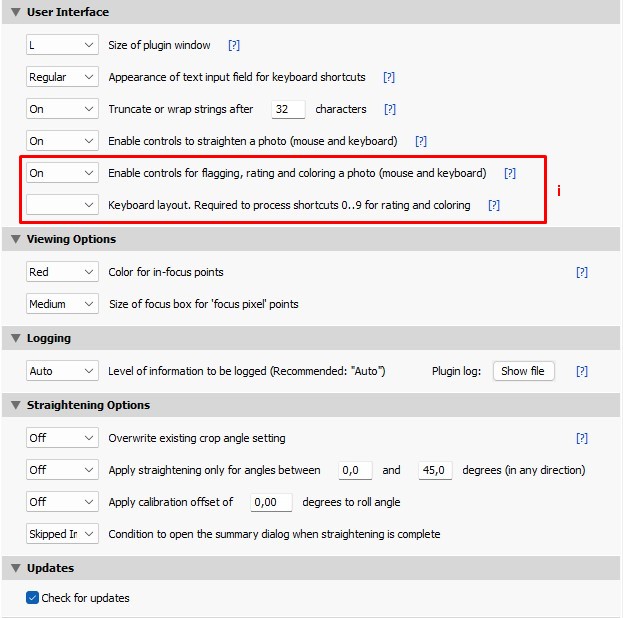
The highlighted settings are the only ones that normally require attention. All other settings can safely remain at their defaults.Controls for flagging, rating and coloring a photo↗
- If you want to use Focus Points Viewer in your image culling process, you can use these controls to tag images. If you don’t, you can set it to
Off, which will make the control bar look less cluttered. - If you also want to use them, select your keyboard layout. This is required because the Shift-0..9 key combinations usually produce codes that depend on the keyboard layout. ↗
- If you want to use Focus Points Viewer in your image culling process, you can use these controls to tag images. If you don’t, you can set it to
- That’s it! You’re ready to use Focus Point Viewer.
You can start it either by pressing the hotkey you configured in step 2 or by selectingFile → Plug-in Extras → Show Focus Point.
V4 Quick Setup Guide
This guide helps you configure the main new features introduced in V4, particularly Second Screen mode and the available display modes.
Some steps are specific to the operating system (OS) you are running.
To keep things simple, there are separate sections for Windows and macOS.
Setup on Windows
- Download and install the plugin ↗
- Load the AutoHotkey companion script ↗
This script works around current Lightroom SDK limitations to provide a smoother experience inFollowandInteractivemode. - Optional: Load the AutoHotkey script to use a keyboard shortcut to run the plugin ↗
-
Configure plugin settings:
SelectFocus Point Viewerfrom the list of installed plugins (Library → File → Plug-in Manager) and check theUser Interfacesection: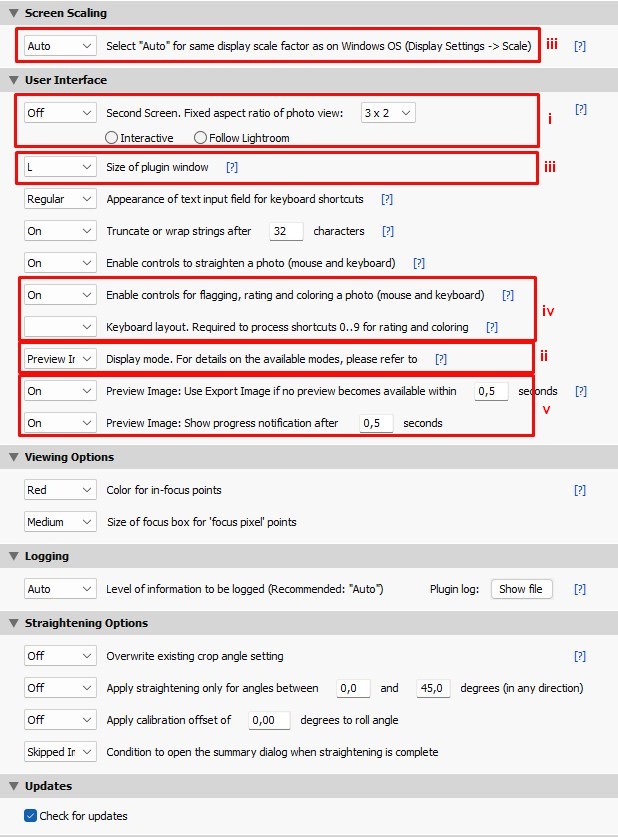
The highlighted settings are the only ones that normally require attention. All other settings can safely remain at their defaults.Second Screenmode and behavior: ↗
- Set
Second ScreentoOnto continue working in Lightroom while Focus Points Viewer remains open. - Choose whether you want Focus Point Viewer to
Followwhile you’re working in Lightroom or if you want to use it interactively. - Select the aspect ratio used in Second Screen mode.
- Set
Display mode↗
- In Interactive mode, Preview Image is generally the recommended display mode. The use of
Direct Viewis currently impaired by a Lightroom SDK limitation. ↗ - In
Followmode, you may considerDirect View, particularly if you are not interested in viewing every photo but only specific ones.Direct Viewis fast and runs entirely in-memory.Preview Imageinvolves disk operations that may slightly impair the user experience in Lightroom.
When you want to inspect a particular photo, you can temporarily switch the display mode to update the image. ↗
- In Interactive mode, Preview Image is generally the recommended display mode. The use of
- Set your preferred plugin window size.
- If you are using the Windows Display Settings to scale your display, you can use the
Screen Scalingsetting to apply the same or a similar setting for the plugin window. ↗ - While the
Screen Scalingsetting can be used to normalize the plugin window size, theSize of plugin windowsetting can be used to define its dimensions. There are six sizes to choose from, ranging from 3XL to S. These correspond to 90% (3XL) to 40% (S) of the screen area used by Lightroom. ↗
- If you are using the Windows Display Settings to scale your display, you can use the
Controls for flagging, rating and coloring a photo↗
- These controls were originally introduced because Lightroom could not be accessed while Focus Points Viewer was open. This is normally not required in second screen mode. You can set it to
Off, which will make the control bar look less cluttered. - If you also want to use these controls in Second Screen mode, select your keyboard layout. ↗
- These controls were originally introduced because Lightroom could not be accessed while Focus Points Viewer was open. This is normally not required in second screen mode. You can set it to
Preview Imageperformance settings ↗
InPreview Imagedisplay mode, the time to open Focus Points Viewer largely depends on whether a preview of the selected photo is available in Lightroom. If a preview is available, it can be obtained instantly. Otherwise, it can take several seconds for the plugin window to appear.
You can control how long to wait for a preview. If Lightroom cannot provide one within the given time frame,Export Imageis used instead. If you are not satisfied with the results produced by the default setting of 0.5 seconds, the user manual provides detailed information on how to determine the best value for your setup. ↗
- That’s it! You’re ready to use Focus Point Viewer.
You can start it either by pressing the hotkeyNumPad *(if configured in step 3) or by selectingFile → Plug-in Extras → Show Focus Point.
Setup on macOS
The macOS version currently requires less configuration because some V4 features are still under development or limited by the Lightroom SDK.
- Download and install the plugin ↗
- Optional: Assign a shortcut to run the plugin ↗
-
Configure plugin settings:
SelectFocus Point Viewerfrom the list of installed plugins (Library → File → Plug-in Manager) and check theUser Interfacesection: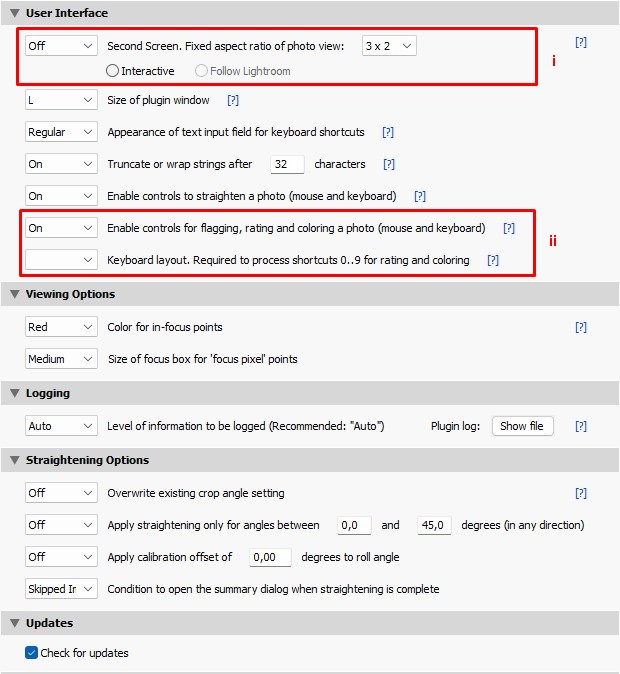
The highlighted settings are the only ones that normally require attention. All other settings can safely remain at their defaults.Second Screenmode and behavior: ↗
- Set
Second ScreentoOnto continue working in Lightroom while Focus Points Viewer remains open. - Currently,
Interactiveis the recommended mode for macOS. Current Lightroom SDK limitations significantly limit the usability ofFollowmode because the plugin window
- will not keep its position on a secondary display but switch back to the primary screen ↗
- will become the active window when opened, thus interrupting user operations in Lightroom ↗
If the
Followworkflow is important to you, please vote for the linked Adobe bug reports. Community votes help increase its visibility. - Select the aspect ratio used in Second Screen mode.
- Set
Controls for flagging, rating and coloring a photo↗
- These controls were originally introduced because Lightroom could not be accessed while Focus Points Viewer was open. This is normally not required in second screen mode. You can set it to
Off, which will make the control bar look less cluttered. - If you also want to use these controls in Second Screen mode, select your keyboard layout. ↗
- These controls were originally introduced because Lightroom could not be accessed while Focus Points Viewer was open. This is normally not required in second screen mode. You can set it to
Note: V4 PRE 1 only supports
Direct Viewon macOS. With the addition ofPreview ImageandExport Imagein an upcoming pre-release, theDisplay modesettings and thePreview Imageperformance control settings will also become available on macOS. - That’s it! You’re ready to use Focus Point Viewer.
You can start it either by pressing the hotkey you configured in step 2 or by selectingFile → Plug-in Extras → Show Focus Point.