Focus Points for Lightroom Classic
Frequently Asked Questions (FAQ)
Got a question? Chances are you’ll find the answer here.
This FAQ answers common questions about Focus Point Viewer, explains certain behaviors, and describes available workarounds where applicable.
Browse by category
Compatibility
Installation
Setup
File Types
Keyboard Shortcuts
- Using a keyboard shortcut to open Focus Point Viewer
- Using keyboard shortcuts to operate Focus Point Viewer
Display Modes
Second Screen Mode
Straighten Images
User Interface
How-To
Performance
Known Camera Limitations
Troubleshooting
Q&A
Compatibility Q&A
Does the plugin work with Lightroom perpetual licenses LR5 and LR6?
Focus Points is compatible with Lightroom Classic – LR5.7 and LR6 perpetual licenses and LrC subscriptions. ↗
Focus Points is not compatible with Lightroom Desktop or Camera RAW. It is based on the Lightroom SDK, which is only available in Lightroom Classic.
Focus Point Viewer can be used with LR5.7 (except tagging and straightening) and LR6
The plugin doesn’t seem to work. Is my camera not supported?
There are various reasons why the plugin might not seem to work with your photos. A good place to start is to check the compatibility list. The plugin supports all camera models released by Canon, Nikon, Sony, Fujifilm, Olympus/OM, Panasonic and Pentax within the last 10 years, as well as significantly older models.
The autofocus display requires certain metadata to be available as part of the image file. If the camera does not record this metadata, the plugin will not be able to display a focus point. ↗
The same applies to straightening images. Please note that this is independent of the ability to display focus points. For instance, a camera may record AF metadata but not roll angle information. This is why the compatibility list has separate sections.
There are also a number of specific reasons why Focus Point Viewer does not seem to work with certain images. This is indicated by an error message in the Focus Information section. Clicking the blue link icon provides more information about the underlying problem. ↗

If your camera manufacturer is supported and your camera is less than 10 years old, it is most likely that your camera model is supported.
Installation Q&A
I have never worked with Lightroom plugins. What do I need to install Focus Point Viewer?
The installation of Focus Point Viewer follows the same procedure as most third party plugins. The User Manual covers a compact description for users that are familiar with that procedure, as well as detailed description for users that have no practical experience with installing plugins.
Although plugin installation may seem complicated at first, it’s not difficult if you follow the instructions.
Why am I getting a security alert by Windows Defender and VirusTotal?
Security software such as Windows Defender or VirusTotal may flag an alert that the plugin contains potentially dangerous files. All known incidents relating to these alerts involve the precompiled AutoHotkey script executables intended to run the plugin via a keyboard shortcut, without the need to install the AutoHotkey utility. It is a widely known issue that the Ahk2Exe compiler can trigger virus protection alarms, and this has been brought to the attention of the developers. ↗
In the past, MalwareBytes also blocked the plugin site on GitHub for the same reason. This block has been removed by MalwareBytes upon request. ↗
If you’re still suspicious and want to be absolutely sure, delete the .exe files from the directory focuspoints.lrplugin\ahk and use AutoHotkey instead to run the .ahk script files, if you want to use a keyboard shortcut to run the plugin. ↗
The plugin package is safe and does not contain any infected or dangerous files.
Setup Q&A
Is there anything I need to do after installation, or can I start using it right away?
V3.4 works well with its default settings. There are only a few options you may want to adjust before using the plugin. ↗
V4 introduces the Second Screen and Display modes. To use these features effectively, you must adapt their settings to your intended workflow. ↗
If you’re feeling impatient, you can skip the V3.4 documentation and get started right away. For V4, it is recommended that you at least skim the Quick Start Guide.
File Types Q&A
Is the plugin only compatible with RAW images?
In general, displaying autofocus points and straightening images works with all image files containing the full set of metadata recorded by the camera. This applies to both RAW and JPG files straight out of the camera. ↗
DNG files created or converted from RAW can still contain relevant metadata. However, this depends on the individual application used to create the DNG file. ↗
For instance, DNG converted from Fuji RAF is missing essential information. ↗
The plugin is compatible with all JPG and RAW files straight out of camera. It is also likely to work with DNG files but this depends on the camera model and the application.
Keyboard Shortcuts Q&A
How can I set up a hotkey to open Focus Point Viewer?
Yes. There are different ways to do this on Windows and macOS. ↗
You can setup custom keyboard shortcuts to run Focus Point Viewer, Metadata Viewer and Straighten Images on both Windows and macOS.
I’m used to working in Lightroom using keyboard shortcuts. Does Focus Point Viewer support this way of working?
To simplify operation of the plugin, keyboard shortcuts are supported. These shortcuts can be used to perform all actions associated with the user interface, meaning you can operate the plugin entirely with the keyboard and never need to touch the mouse. ↗
Since Lightroom doesn’t support the use of keyboard shortcuts in plugins, Focus Point Viewer uses a “trick” to implement keyboard shortcuts. This approach has certain limitations. ↗
Focus Point Viewer features can be controlled entirely using the keyboard.
Display Modes Q&A
Why does Direct View display gray artifacts around the AF corner markings on Windows? Is my GPU the cause?
Direct View on Windows produces corner markings with rectangular artifacts around the overlay images:
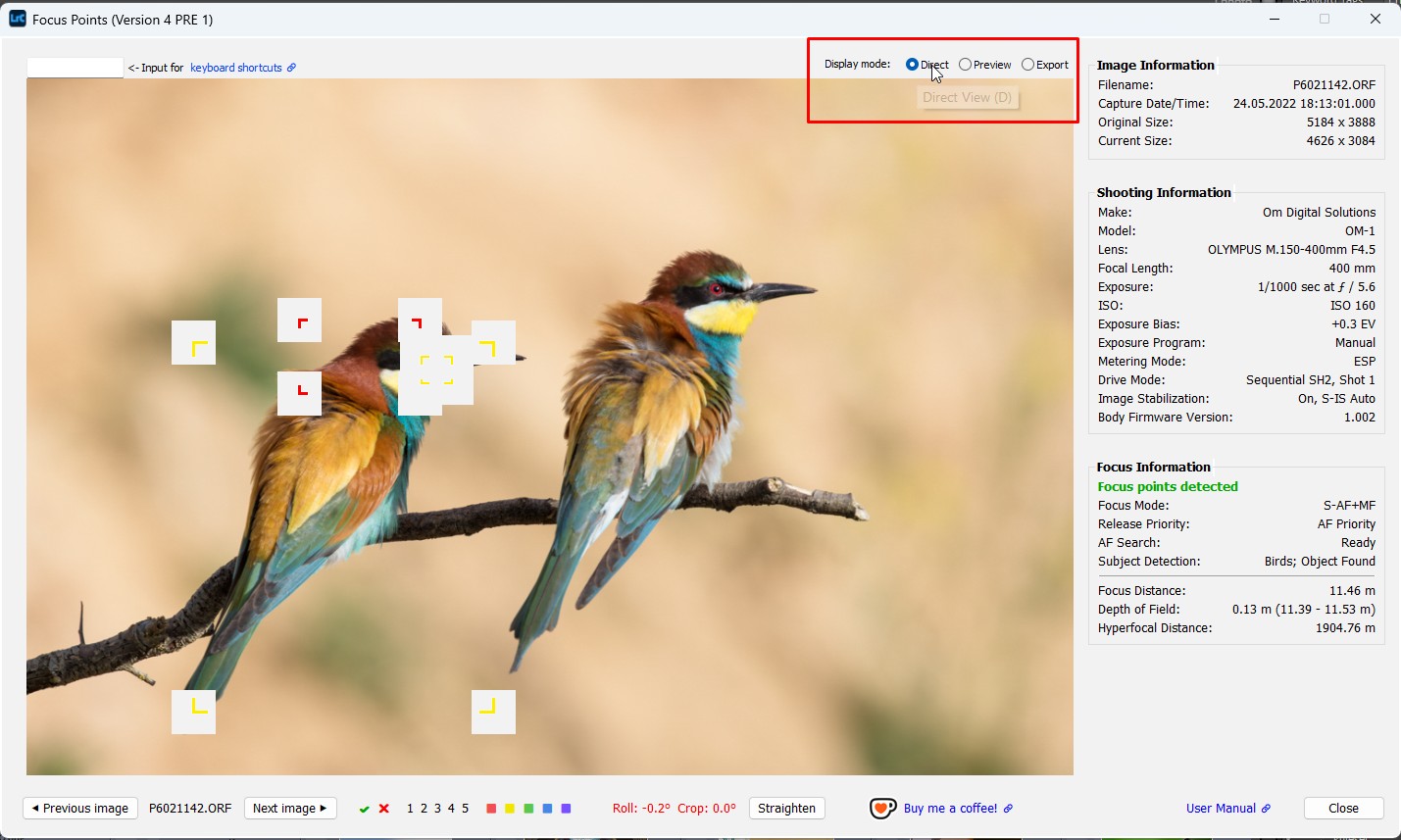
This is due to inconsistent behavior of the underlying Lightroom SDK function when using transparent PNG overlays in overlapping layouts on Windows vs macOS.
See also: Known Limitations 5) for background information, a possible workaround, and instructions on how to support the Adobe bug report.
This limitation of the Lightroom SDK only affects Windows and does not indicate a problem with your GPU.
Why are the Preview Image and Export Image display modes unavailable on macOS?
The availability of Preview Image and Export Image display modes on macOS requires the integration of the third-party tool ImageMagick which is used on Windows to draw rectangular markings onto the image file.
Support for macOS is planned for a future V4 pre-release.
Second Screen Mode Q&A
How can I stop Focus Point Viewer from switching back to the primary screen on macOS?
This was caused by an issue in the Lightroom SDK prior to LrC 15.5 (August 2026). ↗.
If you are still experiencing this problem, please update Lightroom Classic to version 15.5.
An update of Focus Points Viewer (V4 PRE 4) has been released in parallel to LrC 15.5 to unlock the Follow Lightroom mode on macOS.
With LrC 15.5 (August 2026) and the V4 PRE 4 plugin version, Focus Point Viewer can be used on a secondary display on macOS.
How can I prevent Focus Point Viewer from automatically becoming the active window whenever a new photo is loaded in Follow Lightroom mode?
Lightroom opens floating dialogs as active window by default. Once a dialog has been opened, keyboard input is accepted and processed by the dialog. While this is desired behavior in Interactive mode, it breaks the user workflow in Follow Lightroom mode. The Lightroom SDK lacks the option of a parameter controlling the window behavior.
A workaround has been implemented on Windows using an AutoHotkey script. While this is acceptable for a pre-release, it is not a viable solution for a public release.
A similar workaround for macOS has not been investigated because Follow mode is currently of limited practical use on macOS due to another Lightroom SDK limitation.
See also: Known Limitations 2) for background information, how to install the available workaround, and instructions on how to support the Adobe bug report.
A workaround is available on Windows for this limitation of the Lightroom SDK.
Why doesn’t Focus Point Viewer accept keyboard input immediately after opening in Interactive mode on Windows?
While Focus Point Viewer becomes the active window after it has been opened, it doesn’t accept and process keyboard input until the user presses Tab, Right Arrow, Down Arrow or clicks a UI control. This behavior is a limitation of the Lightroom SDK and affects Windows only.
A workaround has been implemented using an AutoHotkey script. While this is acceptable for a pre-release, it is not a viable solution for a public release.
See also: Known Limitations 3) for background information, how to install the available workaround, and instructions on how to support the Adobe bug report.
A workaround is available on Windows for this limitation of the Lightroom SDK.
Why is Focus Point Viewer always in front on Windows?
When running Lightroom in screen mode Normal or Full Screen with Menubar, Focus Point Viewer is always in front of all other open windows. This can be annoying if you are using Lightroom and the plugin in interactive mode on the same screen and want to switch between them.
By using Lightroom screen mode Full Screen and Focus Point Viewer Interactive you can at least bring Lightroom to the front until a different photo is selected.
See also: Known Limitations 4) for background information.
There is a very limited workaround for Windows, macOS is not affected.
Why does Lightroom display an ‘Export file’ progress bar even though I have chosen Preview Image display mode?
Apart from an explicit choice of Export Image, Focus Point Viewer can choose this method in two situations:
- In
Developmodule
Lightroom cannot always generate or update previews quickly enough while you are working inDevelopmodule. (that’s also why Lightroom’sBuild Previewscommand is not accessible inDevelop) - If a
Preview Imagetimeout has been specified
In order to reduce long opening times of Focus Point Viewer (which is basically waiting for a preview to become available), you can specify a timeout after which Focus Point Viewer no longer waits for a preview but usesExportinstead. ↗
The plugin can decide to use ‘Export Image’ based on the situation, if this display mode is to be preferred over ‘Preview Image’.
Why do the Left and Right Arrow keys sometimes stop working in Lightroom when Focus Point Viewer is running in Follow Lightroom mode?
Observed on Windows only.
When using the left and right arrow keys to navigate in filmstrip view while the Focus Point Viewer is open in ‘Follow’ mode, the arrow keys may stop working after some time.
The Ctrl+Left Arrow and Ctrl+Right Arrow keys continue to work and perform the same function.
Switching to another application and then back to Lightroom restores normal behavior.
Why do I have to click twice to open a photo in Focus Point Viewer from Grid view, while a single click is enough in Filmstrip view on macOS?
This is normal macOS behavior when any application is active and you click in the grid.
Why do empty margins appear on the right or bottom of the Focus Point Viewer window when I change its size in ‘Second Screen’ mode?
Focus Point Viewer keeps a fixed layout so it does not resize when switching between landscape and portrait photos on a secondary screen. Choosing a smaller size for the plugin window can result in empty margins. Simply resize the window once to remove them. ↗
Focus Point Viewer cannot remember the last window position used and automatically resize to fit the displayed contents at the same time.
Straighten Images Q&A
Why is the Straighten button grayed out for all my photos?
The Straighten Images function uses the roll angle data from a photo’s metadata to apply the correct crop rotation and compensate for camera tilt.
Not all camera manufacturers record this information when an image is taken. For example, Sony does not. Others only do it in recent camera models. As Straighten Images relies on the presence of the RollAngle tag in the metadata, it is only compatible with certain cameras that record this information.
Straighten is only supported on cameras that record Roll Angle metadata.
Why does Straighen produce non-optimal results for some images?
The quality of the result of aplying Straighten essentially depends on two factors:
- Precision of roll angle measurement by the camera
- Accuracy of the camera’s level gauge adjustment
If either of these two factors is limited, the recorded camera roll angle will not accurately represent the camera’s tilt when the photo was taken. Consequently, the outcome of the ‘Straighten’ function will also be inaccurate. ↗.
The accuracy of the ‘Straighten’ function relies on the accuracy of the ‘Roll Angle’ metadata.
User Interface Q&A
The plugin window exceeds the dimensions of my screen. How can this be avoided?
There are multiple reasons for this:
-
If you are using Windows and have set a scale factor in the Display settings.
A typical example would be a screen with a high resolution but a relatively small display area, such as a laptop with a 4K display. Lightroom SDK apps, such as Focus Point Viewer, are unaware of this scale factor. You can adjust a setting to tell the plugin about it. ↗ -
Versions 3.4, 3.4.1, 3.4.2 as well as V4 PRE versions 1 to 3 (with the
Second Screenoption set toOFF) had a bug that caused the plugin window to occupy more space than actually required, with no options to resize the windows to smaller dimensions #420 -
In versions V4 PRE 1 to 5 (with the
Second Screenoption set toON) the plugin window also retains its previous size when choosing a smaller window size. However, in Second Screen mode, the window can be manually resized by moving the mouse to any border or corner of the window until a double-pointed arrow appears, and then clicking and dragging the window inward.
How-To Q&A
Can I zoom in on the photo to make the area around the focus point more visible?
The plugin currently does not have a zoom feature. While it would not be straightforward to add this feature, it could be a useful addition in the future.
In V4, when running in Second Screen mode, you can simulate a zoom. With the photo and its markings (focus point and detection frames) displayed, open the Crop tool and click and drag a rectangle over the part of the image that you want to enlarge. As soon as you confirm the crop, the Focus Point Viewer will update its display. You can repeat this process as many times as you like, or simply press Ctrl+Z to undo the crop.
Focus Point Viewer does not support a native zoom feature, but you achieve a similar effect by temporarily cropping the photo in Lightroom.
Performance Q&A
Is there anything I can do to reduce how long it takes to open the plugin window?
In general, the time taken to open Focus Point Viewer generally depends on the following factors:
- The hardware used (CPU/GPU and disk speed).
- Lightroom performance.
- The size of the image.
- The number of focus points in the photo (in some cases).
For a given setup, the display mode used by Focus Point Viewer can make a difference.
V3.x:
On macOS, Focus Point Viewer uses Direct View which is the fastet way to display an image.
On Windows, Preview Image is used since Direct View is limited by the Lightroom SDK. Preview Image requires a preview of the photo, which can have a significant impact. See How to reduce long wait times when opening the plugin window on Windows for a detailed explanation what you can do to improve speed.
V4:
V4 provides extended support for Display Modes. ↗
On macOS, Focus Point Viewer uses Direct View which is the fastet way to display an image.
On Windows, you can now also select the ‘Direct View’ option, but the presentation ↗ in this mode is limited. ↗
If visual appearance is more important than speed in your workflow, the right choice for you is Preview Image. See How to reduce long wait times when opening the plugin window on Windows for a detailed explanation what you can do to improve speed.
If you’re not using an outdated setup, the plugin can open a photo in between 0.5 and 1 second, unless a preview is not yet available in Lightroom.
Does the display mode affect how long it takes to open the plugin window?
Yes, it does. The various display modes offered in V4 differ in terms of both the appearance of the markings and performance.. Direct View renders the displayed image entirely in memory and therefore provides the fastest display. ↗
Direct View is the fastest display mode and is therefore the recommended choice for workflows where speed is important.
Why does Preview Image sometimes revert to Export?
Preview Image fallback can be configured in the plugin settings to reduce the time it takes to open the plugin window. The waiting time for a preview to become available in Lightroom is limited to a certain threshold, after which the image will be created by Export. ↗
The plugin can decide to use ‘Export Image’ based on the situation, if this display mode is to be preferred over ‘Preview Image’.
Known Camera Limitations
Why doesn’t the Focus Point Viewer display focus points for Fuji DNG files?
The autofocus point information (x/y coordinates) recorded by Fujifilm cameras relates to the size of the preview image inside the RAF file, not the original RAW image size. The size of the preview image is stored in the tags ExifImageHeight and ExifImageWidth.
Neither the standalone Adobe DNG Converter nor the Lightroom integration retains these tags when converting RAF to DNG. In fact, the converter creates custom-sized preview images and embeds them in the DNG file. Consequently, the DNG file in Lightroom contains all the AF information (e.g. the positions of the autofocus point, face and subject detection), but this cannot be linked to the photo because the plugin does not know what the original preview image size was.
Creating a DNG file from a RAF file involves generating new preview images, which typically differ in dimension from the original embedded preview image. Since the original preview dimensions have been lost, the plugin can no longer link the autofocus information to the original photo.
Troubleshooting
How can I create a debug log file to help the developer analyze an issue?
This is much easier than it sounds! See the ‘How to create a debug log file’ section of the for a simple three-step guide on how to create and email a debug log file to the developer.
This is much easier than it sounds! For a simple three-step guide on how to create and email a debug log file to the developer, see the ‘How to create a debug log file’ section of the User Manual ↗.